
Fast Track to ArcGIS Pro: A Guide for ArcMap Users

ArcMap was officially retired on March 1, 2026, meaning it is no longer supported by Esri.
The good news? ArcGIS Pro is not just a replacement. It's better, faster, and significantly more stable than ArcMap. For those hesitant to make the switch, this guide offers a fast way to get comfortable.
A Quick Tour of ArcGIS Pro

The first noticeable change is the ArcGIS Pro interface. Instead of toolbars and floating windows, Pro uses a ribbon-style interface similar to Microsoft Office Applications.
Key differences to notice:
Map document file types have switched from .mxd to .aprx
One project can have multiple maps and layouts
By default, editing is always enabled
Symbology
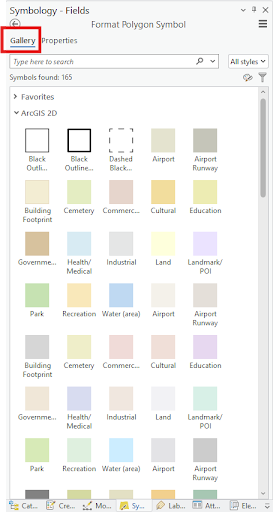
For those transitioning from ArcMap, familiar symbology options can be accessed within the Symbology pane.

Creating and Editing Data
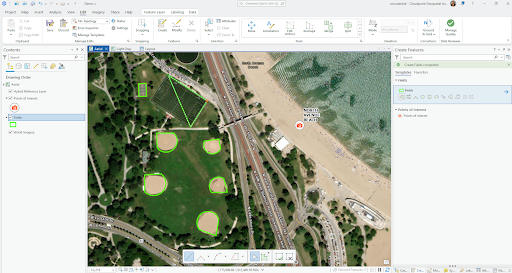
Editing in Pro is streamlined:
No starting and stopping edits
Multiple layers can be edited and saved at once
The Edit tab consolidates editing tools
Remember: Saving edits is different than saving your project.
Editing features = saving to the data
Saving the project = saving your workspace setup

Labeling
Labeling in ArcGIS Pro can be accessed through the ribbon or through the labeling pane.
All of the labeling power from ArcMap is still there, just presented in a more modern, streamlined interface.

Layouts
Because everything lives within a single project file (.aprx), managing maps and layouts together is much simpler than juggling multiple MXDs.
For more information on setting up layouts in ArcGIS Pro, look here.

Learning Resources Built into ArcGIS Pro

Help is built directly into ArcGIS Pro.
Click the Project tab
Select Learning Resources along the left side
From there, you can:
Launch showcased tutorials directly
Click More Tutorials to access Esri's Quickstart tutorial page
Step-by-step tutorials ranging from 15 to 60 minutes
Companion videos
Provides real data you can download and explore
Megan’s #1 Recommended Tutorial: Convert Your MXDs to APRX
On the Quickstart page, there is a section for ArcMap Users.
One of the most useful tutorials walks through converting your existing MXD files into ArcGIS Pro projects. This process preserves layers, symbology, and labels from your MXD and saves it as an APRX. Once saved, you can continue your work in Pro.
Let's Do This!
It’s not necessary to master everything at once. Start small, get comfortable, and build from there!
For more structured support, Cloudpoint offers ArcGIS Pro Kickstarts. These are personalized training sessions designed to help organizations transition to ArcGIS Pro with confidence. Sessions can be tailored to focus on specific workflows and goals, or dive deeper into the basics. It is a practical way to shorten the learning curve, build internal confidence, and make the move from ArcMap once and for all. Contact us today to learn more!


